My Party Is Grinding Mobile & Android: Supported Platforms & Desktop Mode
Platform availability for My Party Is Grinding on Steam for Windows and Mac, why there is no Android or mobile phone build, and how desktop companion mode and offline rewards work.
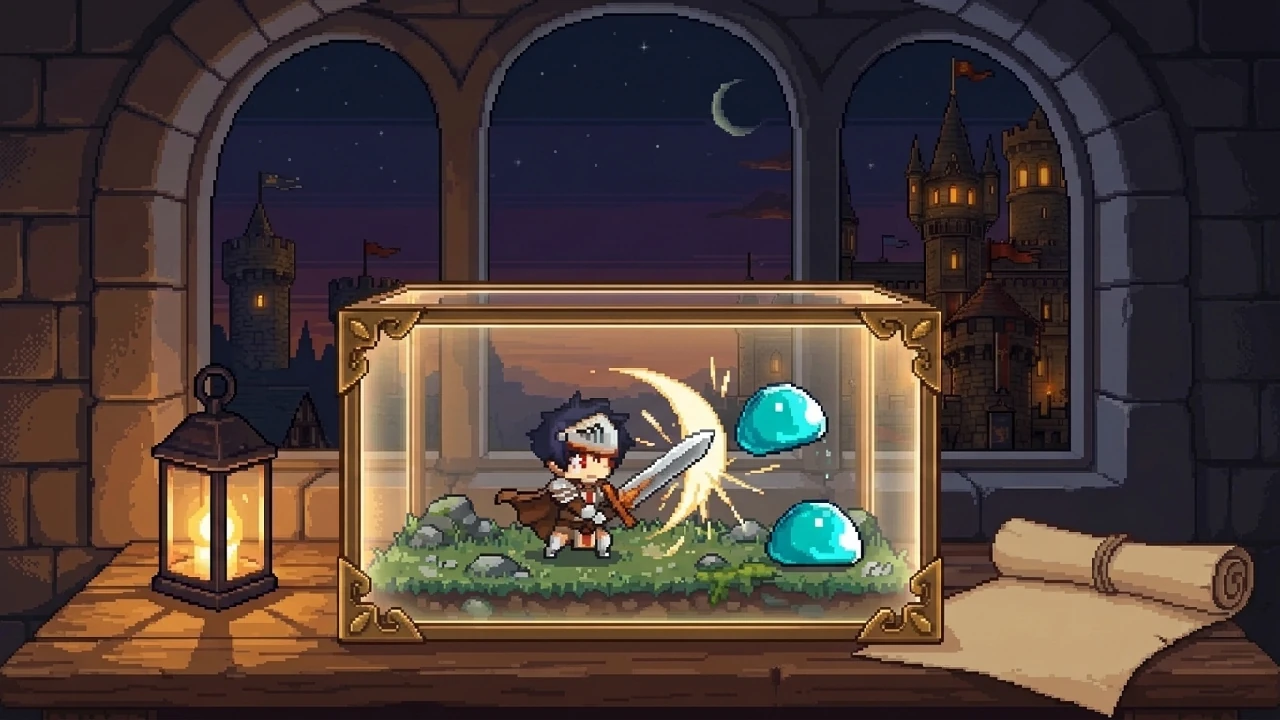
My Party Is Grinding is a free-to-play desktop RPG on Steam for Windows and Mac computers only, with no Android app and no mobile phone or tablet release. SUPERLINK Games launched the full Steam version (Steam app 4952980) on August 27, 2026, built around a small desktop window that runs alongside everyday computer work rather than on phones. If you are starting out on desktop, follow our beginner’s guide for party setup, early stages, and progression basics.
Supported Platforms and Steam Requirements
Running the game requires a Windows or Mac computer, the Steam client, and an active internet connection. The base download stays free on Steam, supports Steam achievements, and links into your Steam Inventory and the Steam Community Market for item trading. Optional paid add-ons sit alongside the free base game; see our DLC packs guide for a breakdown of what each pack includes.
| Platform | Status |
|---|---|
| Supported operating systems | Windows and Mac through Steam |
| Mobile phone and tablet builds | No Android or mobile phone release |
| Base price and Steam listing | Free to play (Steam app 4952980) |
| Full launch date | August 27, 2026 at 09:00 UTC |
| Required client and network | Steam client and active internet connection |
| Supported text languages | 14 interface languages |
Players running the desktop client on Windows or Mac may also stream, record, and publish monetized gameplay footage without requesting permission from SUPERLINK Games beforehand.
Why Players Search for an Android Version
On Google Play, the Superlink developer page lists Android apps including Bloodbound Lord and Adventure of Priestess. My Party Is Grinding does not appear on that Google Play listing and is distributed on Steam as a Windows and Mac desktop idle RPG. For the November 16–23 Steam Auto Battler RPG Fest, SUPERLINK Games showcased four titles on Steam meant to run in a corner of your desktop.
Desktop Companion Window Controls and Display Settings
Instead of filling a phone screen, the game runs in a semi-transparent desktop window beside your other apps while your party of five heroes battles, loots, and levels. You can drag the window anywhere on screen, zoom in or out, pin it always on top, or let mouse clicks pass straight through the battle area while you work.
- Window sizing and quick shortcuts: Window Size presets include 250% and 300% options. If a size change puts part of the window out of reach, press
Ctrl + '-'to shrink the window,Shift + F11to restore window size, orShift + F12to restore window position. - Display scaling and popup placement: Six Growth popups were adjusted for 200% display scaling, and the Popup Position option lets you open menus above or below the battle area through Settings or the arrow button beside the battle screen.
- Startup launch and quick menu: Enable the Launch on desktop startup option in Settings to open the companion window when your computer boots, or right-click the battle screen to restore window size (an earlier window lock feature was removed in a later UI update).
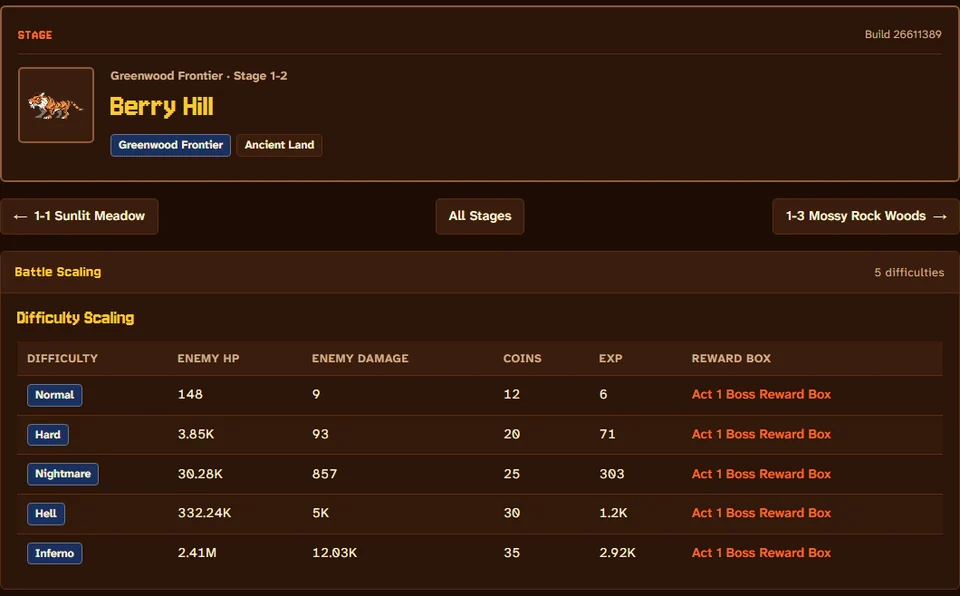
- Automated desktop farming: Auto-challenge repeats your chosen stage across the stages database, such as early Act 1 stage
 Berry Hill (Stage 1-2 in Greenwood Frontier, Ancient Land), which scales across 5 difficulties from Normal (148 enemy HP, 9 enemy damage, 12 Coins, and 6 EXP) up to Inferno and drops the Act 1 Boss Reward Box.
Always-Online Saves, Offline Catch-Up, and Wave Speed
Every account save, item drop, currency balance, crafting roll, and market trade is processed on the server, so the client needs an active internet connection whenever it is open. Because account data lives on the server rather than only on local storage, recovering from a corrupted local settings file only resets local preferences and leaves your party and items intact. Server-side checks also block local tampering and item duplication; read our ban policy and anti-cheat guide for restriction rules and how to find your User Code in Settings when contacting support.
On networks where DNS routing triggers an encryption error before login, the in-game troubleshooting notice advises switching Windows network settings to preferred DNS 1.1.1.1 and alternate DNS 1.0.0.1 with encrypted DNS enabled, or trying a VPN, another network, or USB tethering.
Closing the desktop window does not halt progression once offline catch-up is active:
- Offline rewards cap and unlock: Unlocking the
 Repose Orb (node 3 in Branch 3, costing 8 Coins after the
 Prime Orb root at 1 Coin, for 9 Coins total) activates offline rewards whenever you close the game for at least 30 seconds, storing up to 16 hours of Coin and EXP catch-up.
- Offline rates and stage selection: Base offline Coin and EXP gains run at 85% of online rewards using the stage you selected before logging out, while Orb Circuit and Star Chart modifiers apply separately; read our offline rewards guide for the full breakdown.
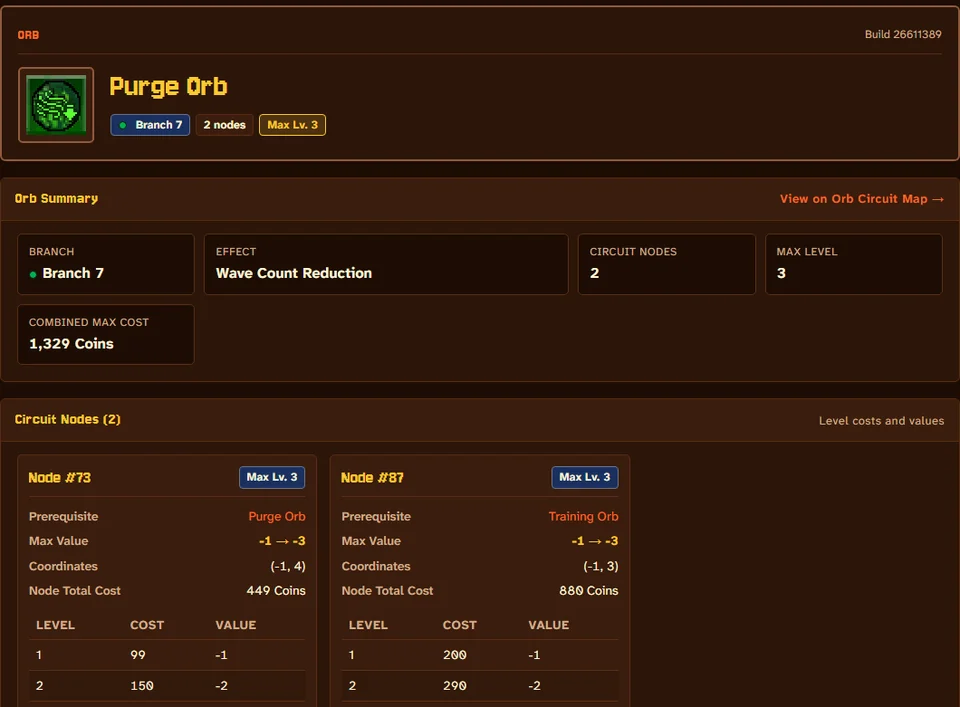
- Shorter active desktop runs: Players who keep the companion window open can also invest in
 Purge Orb in Branch 7, which grants Wave Count Reduction across 2 nodes (node 73 for 449 Coins and node 87 after
 Training Orb for 880 Coins, totaling 1,329 Coins across level 3 each), trimming stage waves (-1 to -3 per node) down to the 2-wave minimum.
Supported Languages and Switching Language in Settings
The game supports 14 text languages: English, Korean, Chinese (Traditional), Chinese (Simplified), Japanese, Spanish-Spain, Portuguese-Brazil, Turkish, Russian, German, French, Vietnamese, Indonesian, and Thai. To switch text language on Windows or Mac, pick your language under Select Language in Settings and accept the prompt; the client then closes automatically and applies the new language the next time you launch it through Steam.